
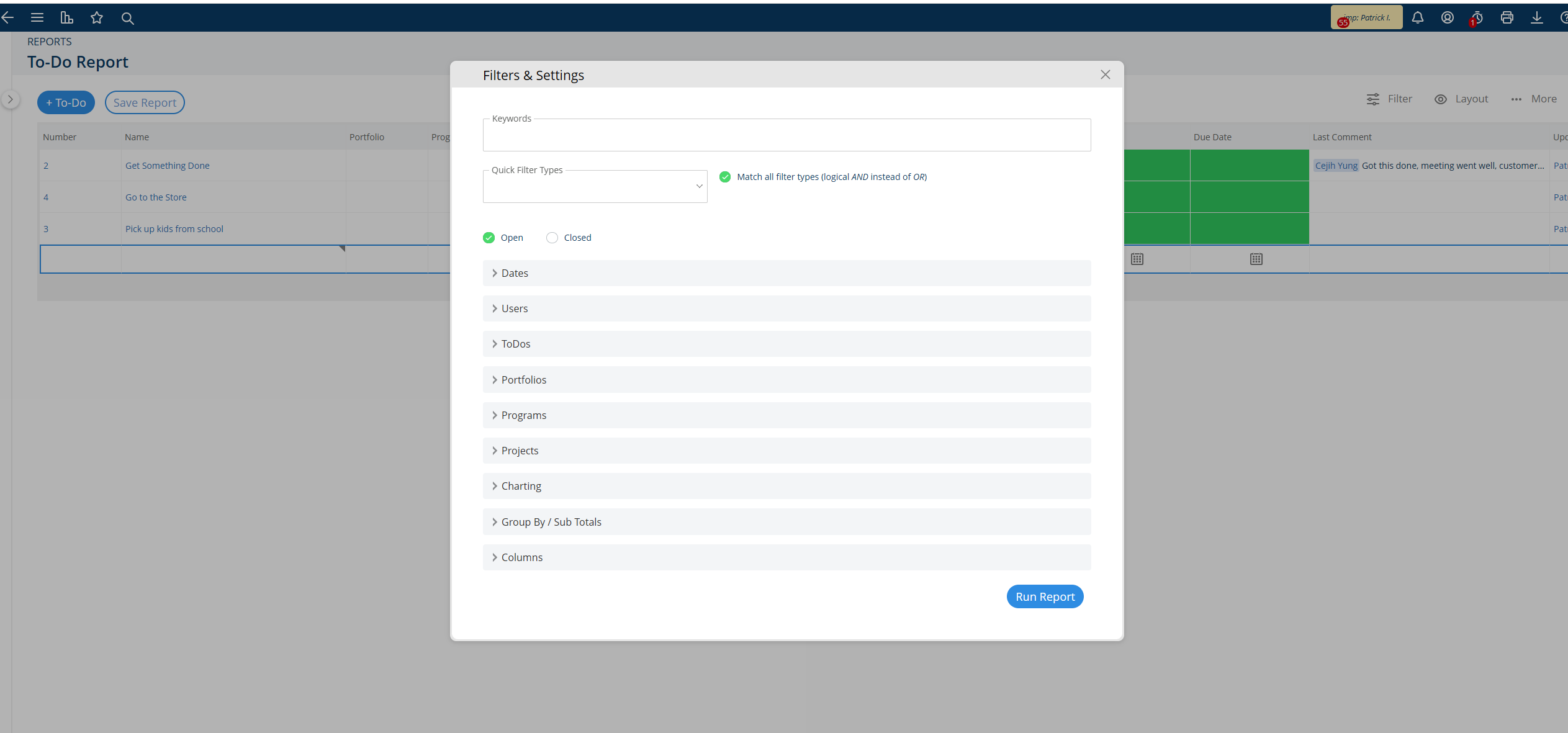
Project Insight allows teams to report on current and historical to-dos by filtering results by keyword, status, date, assigned user, creator, and project. You can also choose report columns, group or subtotal the results, create charts, enable inline editing, and save, share, or schedule the completed report.
Project Insight does this by turning to-do records into a configurable report that teams can use to review open work, completed items, ownership, dates, and activity across projects.
Best for: This article is best for project managers, team leads, administrators, and users who need to review, organize, share, or schedule reports about Project Insight to-dos.
Related article placeholder: Add a link to the Project Insight article explaining how to create and manage to-dos.
What information can a Project Insight to-do report show?
A to-do report can show the current or historical status of to-dos stored in Project Insight. The report can be narrowed using filters and displayed as a table, one or more charts, or both.
Depending on the report options you select, you can review to-dos by:
- Keywords
- Open or closed state
- Created, updated, closed, planned, or actual dates
- Assigned resource
- Creator
- Active project
- Selected report columns
- Grouped or subtotaled values
Project Insight does this by applying the selected filters to the to-do records the user has permission to access.
How do I filter a to-do report?
 How do I run and refine the report?
- Select the filters and display options you want to use.
- Click Run Report.
- Review the report results.
- Return to the display options if changes are needed.
- Update the filters or presentation settings.
- Run the report again.
You can continue adjusting and rerunning the report until the results answer the question you are trying to review.
How do I save a to-do report?
After the report produces the results you need, save it so the same configuration can be used again.
The General tab for a saved report may include the following options:
- Add the report to the Report Menu so it appears in the global report navigation.
- Save the current report as a new report without overwriting the original.
- Enter a descriptive report name.
If a report was created and shared by another user, you cannot overwrite that user’s original report. Use Save as New Report to create your own version.
Give the new report a different name so users can distinguish it from the original.
How do I share a saved report?
Sharing with a group or company can be useful when multiple people need the report. Users added to that group or company later can also receive access to the shared report.
Do shared users see the same report data?
The answer depends on whether the report is shared as a dynamic link or as a static report file.
What happens when a user opens a shared report link?
A shared report link runs the report using the permissions, settings, and access rights of the user opening it.
This means different users may see different results from the same report link if their Project Insight access differs.
What happens when a scheduled report creates a static file?
A scheduled spreadsheet, PDF, or other static output contains the report results generated using the report creator’s access at the time the report ran.
Anyone who receives that file sees the same saved data, even if they would not normally have access to all of those records in Project Insight.
Review report contents and recipients carefully before scheduling static reports that contain sensitive information.
What is the Description tab used for?
Use the Description tab to explain the purpose of the saved report in more detail than the report name alone.
A useful description can explain:
- What the report is intended to show
- Which team or process uses it
- How often it should be reviewed
- What actions users should take from the results
How do scheduled to-do reports work?
Use the Schedule tab to run the report at a selected interval and send users a reminder or report output.
What is a Link Reminder dynamic report?
A Link Reminder (dynamic) sends a link to the saved report. When the recipient opens the link, Project Insight runs the report using current data and the recipient’s access rights.
The report does not store static results from the time the schedule ran.
What is a static scheduled report?
A scheduled spreadsheet, PDF, or other non-dynamic output saves the report data at the time the schedule runs.
The data is generated using the report creator’s access. Every recipient of the static output sees the same saved results.
What common mistakes should I avoid?
- Using All Dates when the report contains a large amount of data.
- Using Specific Dates for a recurring report that should move forward automatically.
- Using Dynamic Dates when the report must always cover one fixed historical period.
- Forgetting to select a folder before creating new to-dos through inline editing.
- Saving a new report with the same name as the original report.
- Assuming every shared user will see the same results from a dynamic report link.
- Sending a static scheduled report without reviewing whether it contains data recipients should not see.
What related questions does this article answer?
Can Project Insight report on closed to-dos?
Yes. Select the closed state to report on completed or historical to-dos.
Can I report on both open and closed to-dos?
Yes. Include both states when you need a complete view of current and historical items.
Can I find to-dos assigned to one person?
Yes. Use User Filtering Options to filter by the resource assigned to the to-do.
Can I find to-dos created by one person?
Yes. User Filtering Options can also filter by the user who created the to-do.
Can I create multiple charts in one report?
Yes. A report can include up to four charts.
Can I show charts and table results together?
Yes. Select Include the Table Results with the Charts.
Can users edit a to-do from a report?
Yes. Enable Inline Editing Options when the displayed fields support inline editing.
Can I schedule a recurring to-do report?
Yes. Use the Schedule tab to send a dynamic report link or a static report output at the selected interval.
Will shared users always see the same report results?
No. Dynamic report links use each viewer’s permissions, while static scheduled files show the same saved results to every recipient.
Where can I get more help?
For assistance creating, filtering, sharing, or scheduling a to-do report, contact Project Insight Support at projectinsight.com/support.
Website content placeholder: Add a link to the appropriate Project Insight reporting feature page, tutorial, or webinar.
Comments
0 comments
Please sign in to leave a comment.